New developments and optimizations for FUTURA Smart version 2.5 | January 2026
📢 New developments and optimizations for version 2.5
With the release of version 2.5, we clearly focus on higher quality, transparency, and ease of use in day-to-day procurement processes. The new version particularly strengthens the reliability of RFQs, improves traceability in the price comparison list, and ensures cleaner, more usable quotation documents. New display and export functions enable buyers to evaluate quotations faster and compare them more effectively. Optimized PDF outputs and improved form guidance complete the release and make daily work more efficient, safer, and more convenient - for buyers as well as for suppliers.
Price Comparison
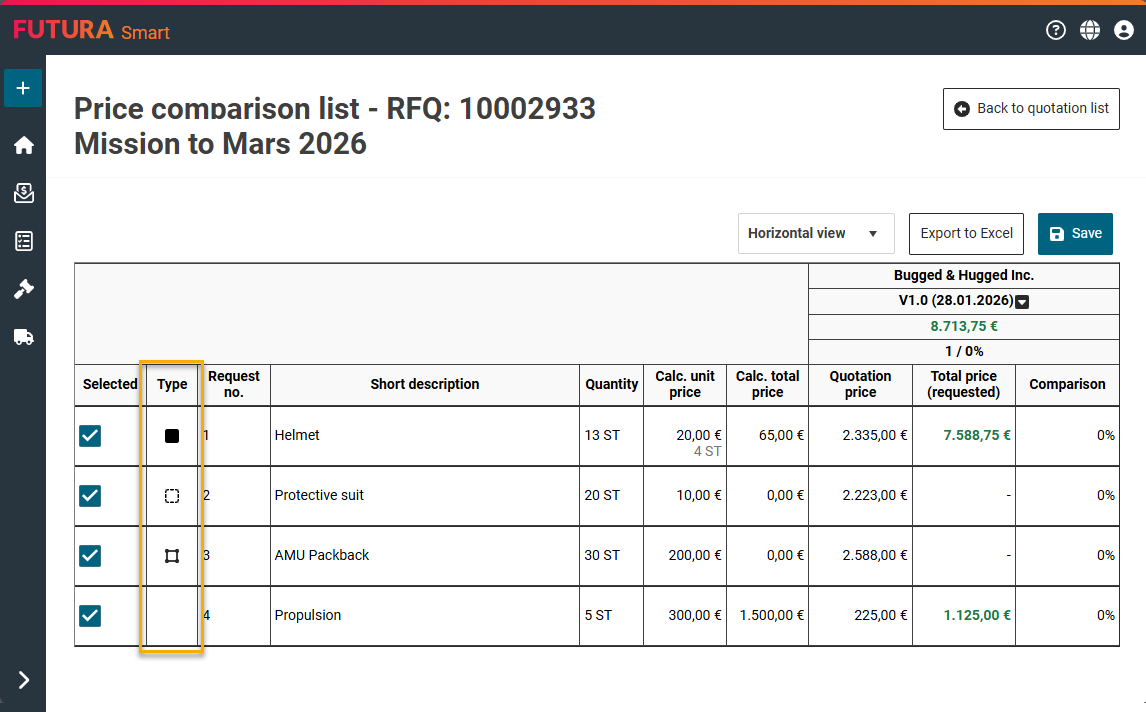
Type column in the price comparison
Item types visible in the price comparison including Excel export
A new column "Type" is displayed in the price comparison. It makes the item type immediately visible and uses the familiar icons including tooltips. The new column is available in both horizontal and vertical views and is also included in the Excel export.
The following abbreviations are used in the Excel export:
Standard item -> no abbreviation
Contingent item -> B
Basic item -> G
Alternative item -> A
Combinations accordingly -> G,B or A,B
The total amounts in the export are calculated correctly depending on the item type.
Contingent items are therefore not included in the total.
Request for Quotation
Validation when starting an RFQ
RFQ start only with valid, priceable items
When starting an RFQ, the system now checks whether at least one priceable item exists. At least one standard or basic item that is not a contingent item is required.
RFQs that contain only remark items or only contingent items can no longer be published. In this case, the process is stopped and an informational message is displayed. This ensures that suppliers can submit their quotations correctly.
Item list
Material number in free text items
Material number for free text items
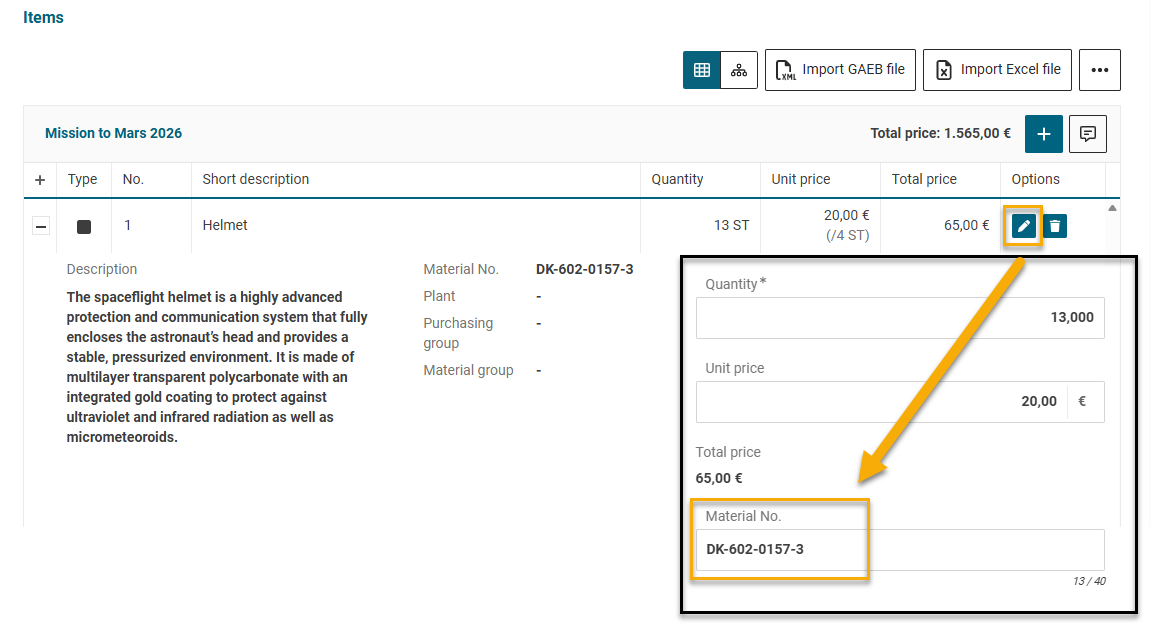
For free text items, the field Material number is available for manual entry. Buyers can freely enter and edit the material number. The field is optional, limited to 40 characters, and is automatically prefilled if the material number was imported into FUTURA Smart via Excel or GAEB.
The material number is also shown in the quotation PDF below the short text, if available. In addition, it appears in the Excel export of the quotation in a separate column between Description and Type. As before, suppliers cannot change the material number.
Price Comparison List
Clones only in closed RFQs
Clones are read-only in "Completed" status
Clone quotations can only be created, edited, or deleted in the RFQ status Closed. In the RFQ status Completed, these actions are disabled. Clones are displayed read-only like original quotations, without input fields.
Quotation print (PDF)
Optimized PDF layout
Improved readability in quotation PDFs
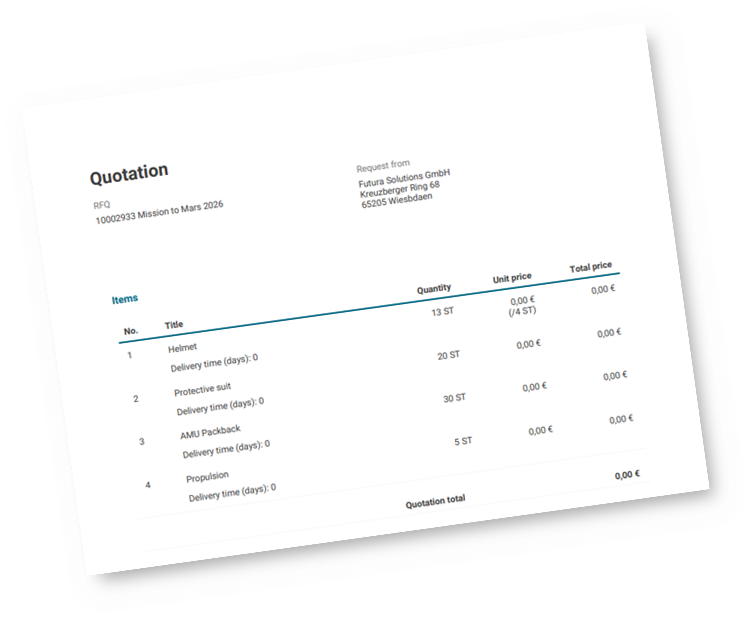
In the PDF print of quotations, the columns for quantity, unit price, and total price have been widened and the column headers adjusted. As a result, price information is clearer and easier to read.