
Some functions, as well as the procedure for managing them, are identical across all modules and cockpits in FUTURA Smart. Below you will find an overview of the articles explaining these shared functions. The described steps apply regardless of the respective module. You can therefore select any of the articles listed below to obtain the required information:
Continue reading this article to learn more about modification options in an RFQ.
Once you start and publish an RFQ, its status changes to “Ongoing” and it is locked for editing. To make changes to an ongoing RFQ, click the “Edit request” button below any tab within the respective RFQ.

The RFQ is then set to edit mode (Draft). You can now make the desired changes or additions.
In an ongoing RFQ, you can also add additional suppliers or deactivate suppliers. You can find instructions on how to do this on the following pages:
Adding suppliers to sourcing events
Deactivating / reactivating suppliers in sourcing events
Changing a supplier’s contact person
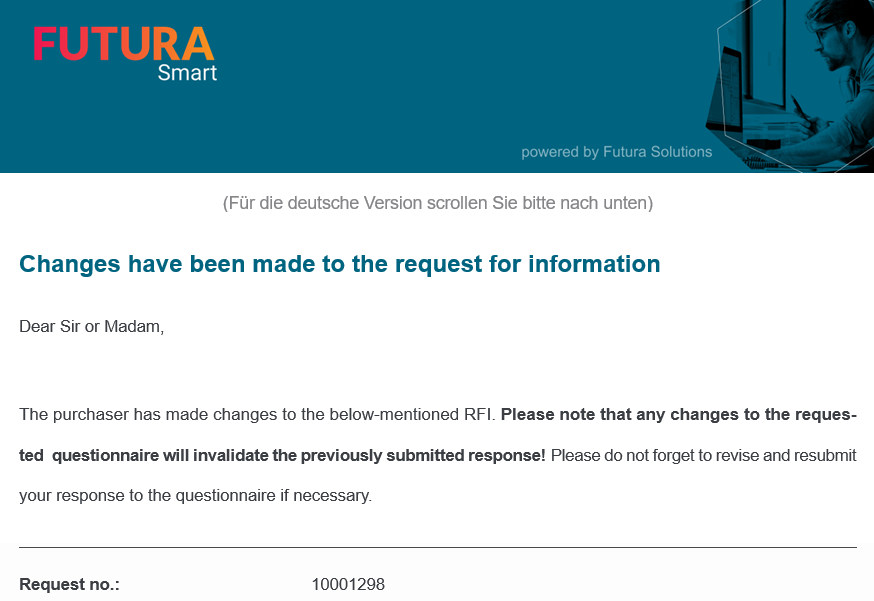
After making the desired changes, click the “Release changes” button. The changes will only become active in the system once they are released, and suppliers will be notified by email if the changes are relevant to them. For example, if you have only added new suppliers, the existing suppliers will not be informed and only the newly added suppliers will receive an invitation.

Example of a notification to suppliers regarding a change:
Please select your desired topic below related specifically to the RFQ cockpit: