
With the "Entire Purchase Requisition" mode, you can transfer a complete Purchase Requisition (PR), including all associated items to an RFQ. Therefore, you can transfer the entire PR to the shopping cart without having to select each item individually. The mode is particularly suitable for large PR with many items as well as for PR with item hierarchies. This will make it faster and easier for you to start the request.
What import modes are available?
When opening the PR Cockpit, you can choose between two modes:
|
Mode |
Usage |
|---|---|
|
Individual Items |
You select individual PR items and place them in the shopping cart. This mode is preselected by default. |
|
Entire purchase requisition |
You select a complete PR. All items and existing hierarchies are inherited when the request is created. |
Note:
The two modes cannot be combined. In the Entire Purchase Requisition mode, exactly one requisition can be transferred to the shopping cart at a time.
Restriction:
A maximum of 1,000 items can be processed per entire purchase requisition.
Prerequisites
For the complete purchase requisition import, you will need:
-
Access to the Purchase Requisition Cockpit,
-
the permission to create an RFQ,
-
the number of the desired Purchase Requisition.
Step 1: Open the Purchase Requisition Cockpit
-
Open the Purchase Requisition Cockpit.
-
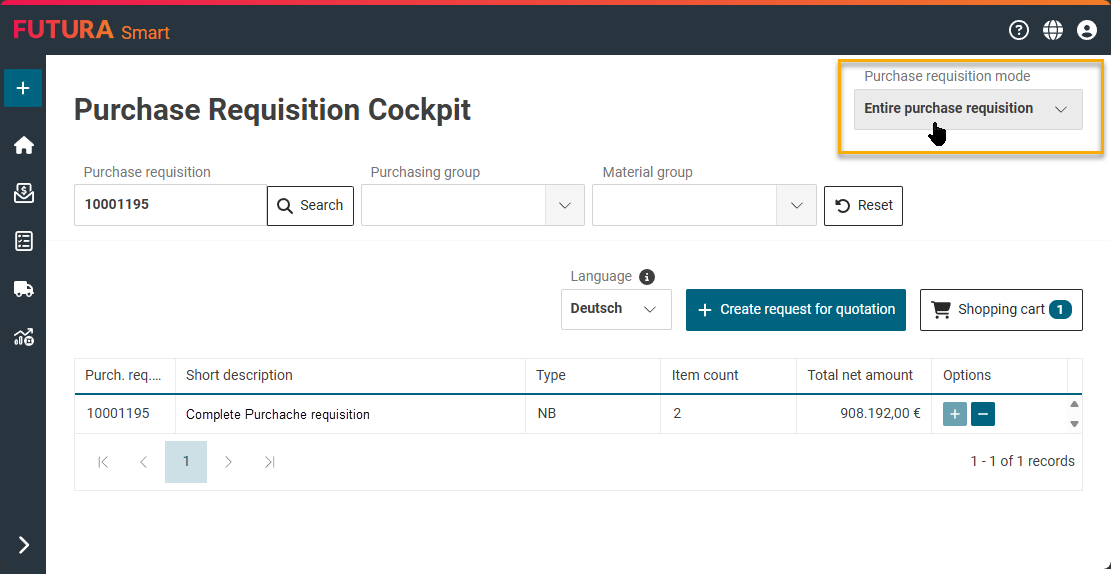
When opened, the "Individual Items" mode is selected by default.
-
Select the "Entire Requisition" mode.
-
After selection, the result list displays complete purchase requisitions at header level.
Step 2: Search for the desired purchase requisition
-
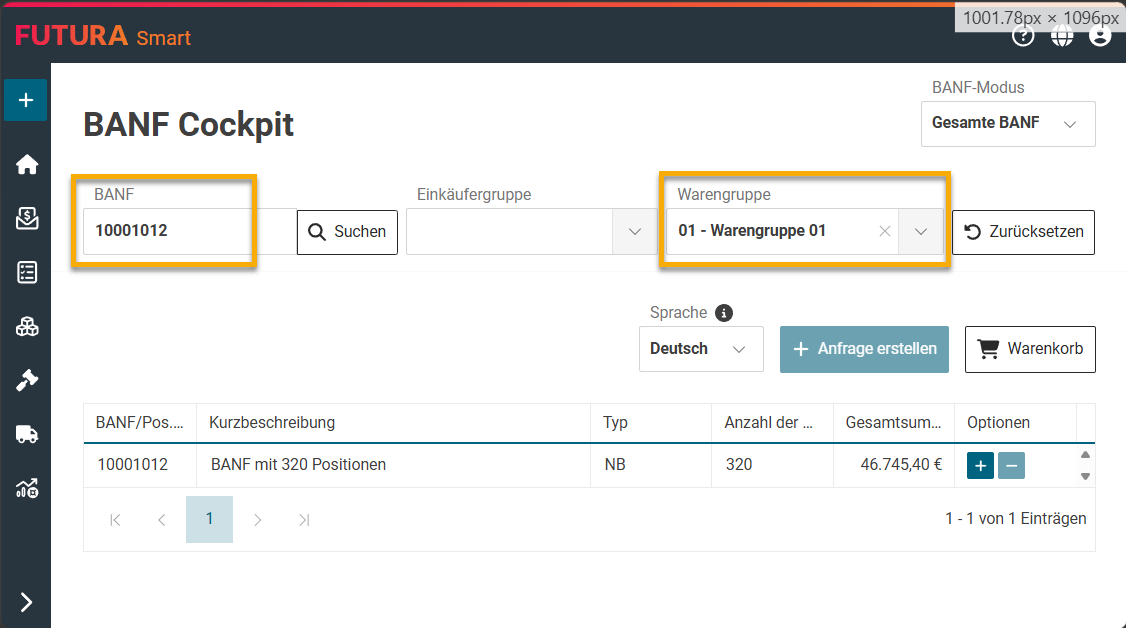
Enter the PR number in the search field provided.
-
If necessary, you can also narrow down the search using the following fields:
- Material Group
- Purchasing Group -
Start the search.
-
Review the results displayed.
Without further restriction, the system initially displays up to 110 PR. With the PR number and the filters, you can find the desired PR in a targeted manner.
How the additional filters work
If you filter by material group or purchaser group, the system displays all PR that contain at least one item with the selected characteristic.
However, the filter does not restrict the later import to this item. If you transfer the PR, the entire PR with all items will continue to be imported when you create the RFQ.
Step 3: Check the search result
In the list of results, each PR is displayed in its own line. The following information will help you make your choice:
|
Column |
Significance |
|
PR/Item no. |
Unique number of the purchase requisition |
|
Short description |
Brief description of the Purchase Requisition |
|
PR type |
Type of purchase requisition, for example, "NB" |
|
Item count |
Total number of items containing in the Purchase Requisition |
|
Total Net Amount |
Total amount of the purchase requisition including currency, for example "€1,000.00" |
In particular, compare the PR number, the description, the number of items and the total net amount before you take over the purchase requisition.
Note:
In this mode, no individual line details or line hierarchies are displayed in the results list.
Step 4: Add the entire PR to the shopping cart
-
Search for the desired PR in the list of results.
-
Click on "+" in the corresponding row.
-
Check whether the PR is displayed in the shopping cart.
This means that you have reserved the complete PR for the RFQ.
Initially, only the selected PR is stored in the shopping cart. The associated items and hierarchies are not yet loaded at this time. This is done automatically in your RFQ.
Note:
You can add exactly one PR to the shopping cart in the "Entire Purchase Requisition" mode. If you want to use a different PR, first remove the PR that has already been selected from the shopping cart. If you add a new PR immediately, the system informs you that the previously selected one will be replaced by the current one.
Step 5: Create a request
-
Make sure that the correct PR is in the shopping cart.
-
Click Create request for quotation.
-
In the cover sheet of the RFQ fill in the required information on the cover sheet.
-
Check your entries.
-
Click Next.
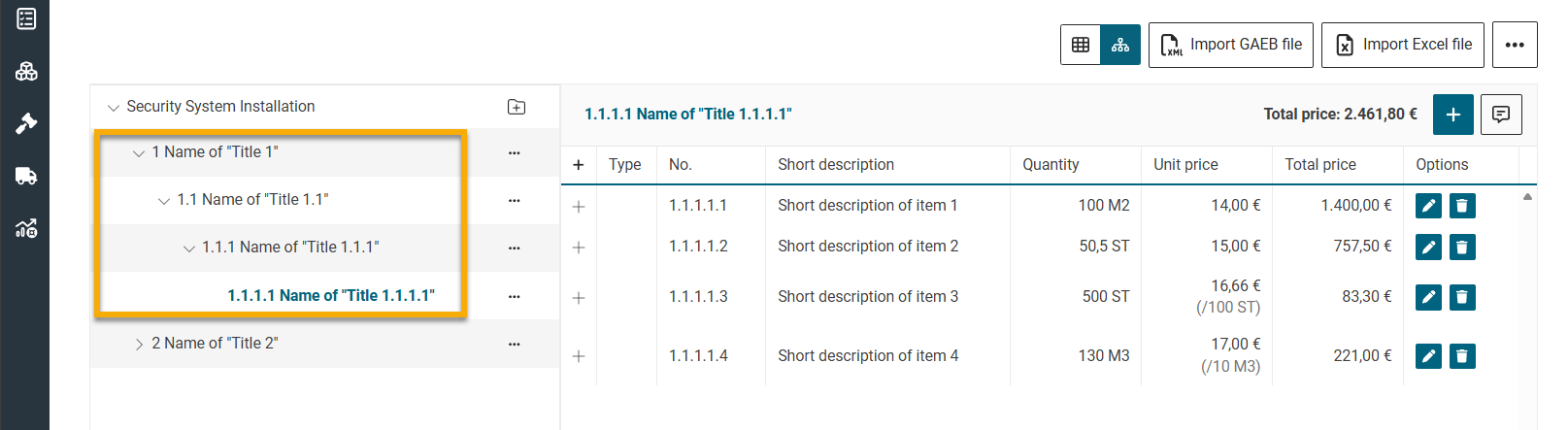
The system now creates the RFQ and loads the complete item list of the selected PR from SAP. Existing item hierarchies are also adopted. The PR is listed in its individual items in the "Items" step of the RFQ.
Step 6: Check adopted items
-
Open the Items step.
-
Check whether the expected PR items are available.
-
In the case of structured PRs, also check the hierarchies that have been adopted.
-
Then continue the RFQ creation process as usual.
Switch import mode
You can switch between "Individual items" and "Entire purchase requisition" as long as you pay attention to the impact on the shopping cart.
If the cart already contains entries
-
Select the other import mode.
-
The system displays a warning that the shopping cart will be emptied when changing modes.
-
Check if you really want to make the switch.
-
Confirm the notification message.
-
The shopping cart will be emptied and the new mode will be activated.
Cancel the warning message if you want to keep the existing selection in the shopping cart.
Note:
After confirmation, you must select the desired items or the desired PR in the new mode.