
With bulk editing, you can change multiple items in a single step. This means you no longer need to edit extensive item lists one item at a time.
You can apply the change either to the entire item list or specifically to the items of a selected title, including its subtitles. Before the change is applied, the system shows you how many items will actually be affected.
The function is available in all cockpits provided for the tendering process. It is also available before transferring bids to SAP, allowing you to adjust the relevant values retrospectively.
The item list must be in edit mode. This applies to requests with the status “In Preparation” (the request has not yet been started) as well as to requests that have been returned to draft mode after they were started (the request is being changed retrospectively).
Which fields can be edited?
The following fields can be changed using bulk editing:
|
Field |
Input |
|---|---|
|
Quantity |
Positive number in the supported quantity format, for example |
|
Material Group |
Selection from a searchable SAP list |
|
Plant |
Selection from a searchable SAP list |
|
Material Number |
Alphanumeric input, meaning letters and numbers |
Which editing operations are available?
|
Editing operation |
Effect |
|
Add New |
Enters the new value in all eligible items. Existing values are overwritten. |
|
Add if Empty |
Enters the new value only in eligible items where the selected field is still empty. Existing values remain unchanged. |
|
Remove |
Clears the existing value from the selected field in all eligible items. No new value is required. |
|
Find and Replace |
Searches for a specific existing value and replaces it with a new value in all eligible matches. |
Note:
Carefully check the selected editing operation. “Add New” also overwrites fields that already contain a value.
Edit the entire item list
Use this option if the change is to apply to all eligible items in the list:
-
Open the item list in edit mode.
-
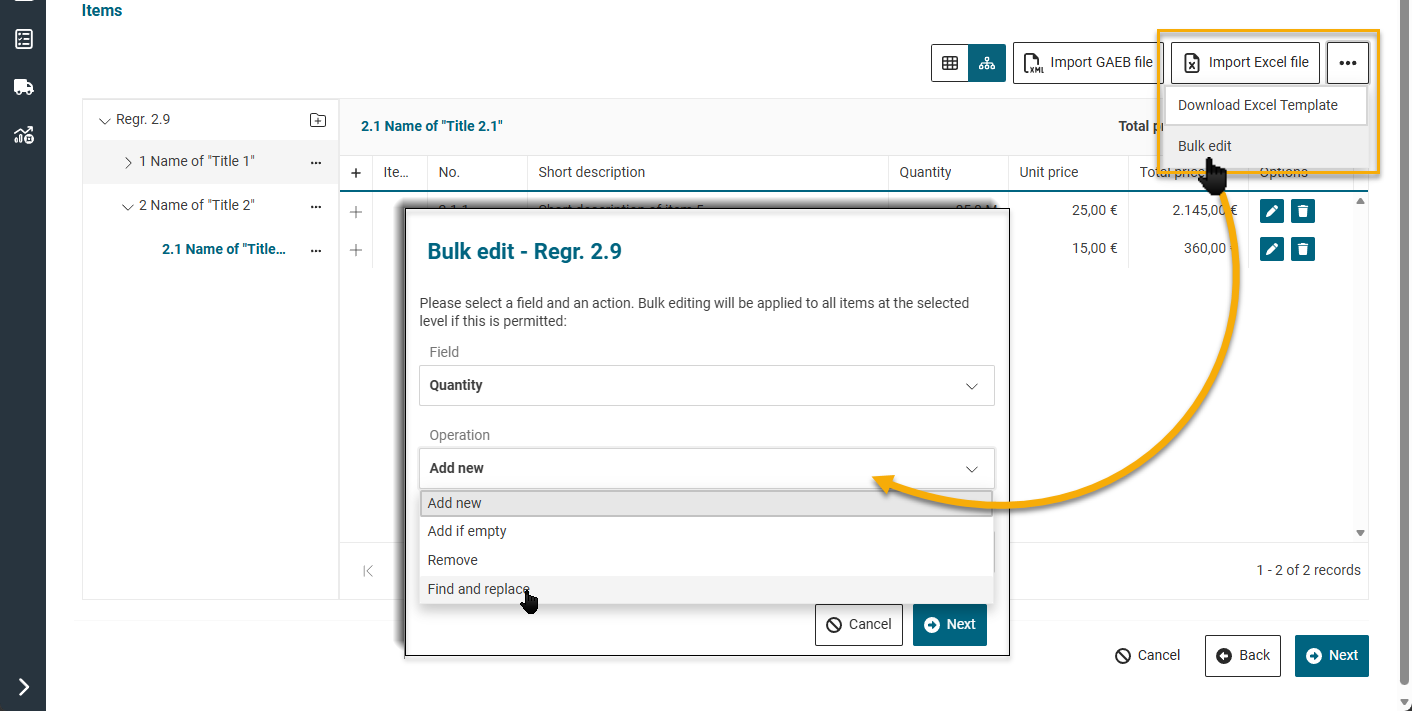
In the item list toolbar, click the “…” menu.
-
Select “Bulk Editing”.
The system now includes the entire item list.
Edit the items of a title
Use this option if the change is to apply only to a specific part of the item hierarchy:
-
Locate the required title in the item hierarchy.
-
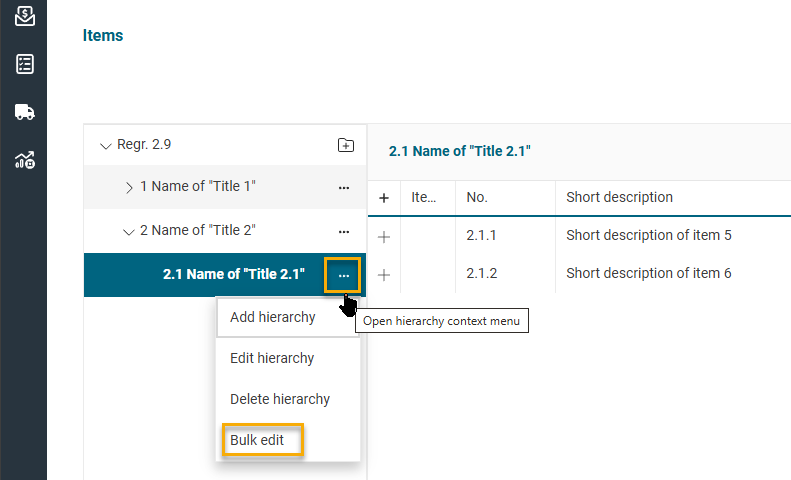
Open the “…” context menu for the title.
-
Select “Bulk Editing”.
The system includes all items assigned to the selected title. Items in existing subtitles are also included.
Replace a specific quantity
-
Open bulk editing for the entire list or for a title.
-
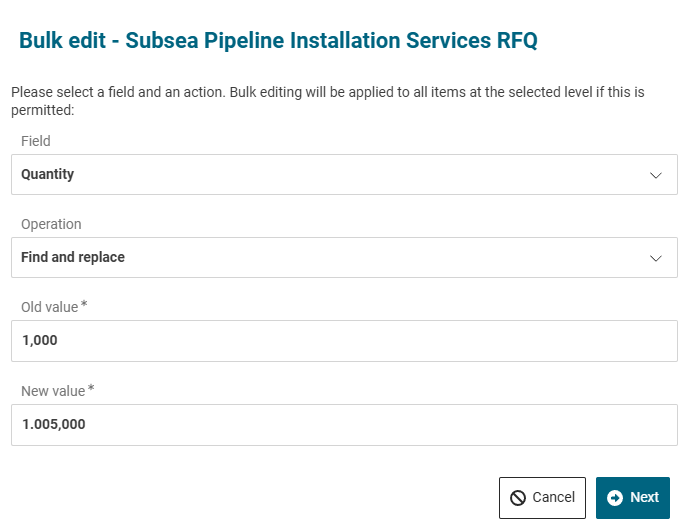
Select “Quantity”.
-
Select “Find and Replace”.
-
Enter the current quantity as the old value.
-
Enter the required quantity as the new value.
-
Check the number of items found.
-
Confirm by clicking “Apply”.
Only items with the specified current quantity are changed.
Enter a new value in multiple items
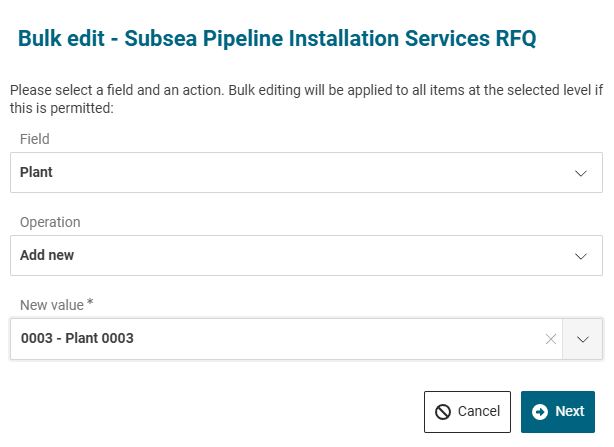
The editing operations “Add New” and “Add if Empty” allow you to enter a value in multiple items.
-
Open the bulk editing function for the entire item list or for a selected title.
-
The “Bulk Editing” dialog opens.
-
In the “Field to Be Changed” field, select one of the following fields:
- Quantity
- Material Group
- Plant
- Material Number -
Select the required editing operation:
- Add New” if the new value is to be entered in all eligible items and existing values are to be overwritten, or
- “Add if Empty” if only fields that are currently empty are to be completed. -
Enter the new value. For Material Group and Plant, select the value from the searchable SAP list.
-
Click “Next”.
-
The system determines the affected items and displays a confirmation dialog showing the number of matches.
-
Check the summary of the field, editing operation, new value, and number of affected items.
-
Click “Apply” to make the change.
The system updates all eligible items and then closes the dialog.
Remove values from multiple items
Use “Remove” to clear the value of the selected field from multiple items.
-
Start bulk editing for the entire item list or for a selected title.
-
Select the field whose value is to be removed.
-
Select the “Remove” editing operation.
-
You do not need to enter a new value for this editing operation.
-
Click “Next”.
-
In the confirmation dialog, check the number of matches and the summary of the planned change.
-
Click “Apply” to remove the values.
Find and replace an existing value
With “Find and Replace”, you change only those items that contain a specific old value.
Example: You can search for plant 1000 and replace it with plant 2000 in all matching items.
-
Start bulk editing for the entire item list or for a selected title.
-
Select the field to be changed.
-
Select the “Find and Replace” editing operation.
-
In the field for the current value, enter or select the old value.
-
In the field for the new value, enter or select the new value.
-
Click “Next”.
-
The system searches for the old value within the previously selected scope.
-
In the confirmation dialog, check:
- The selected field
- The old value
- The new value
- The number of items actually affected -
Click “Apply” to replace the old value in the items found.
Items that do not contain the specified old value remain unchanged.
Check the change before applying it
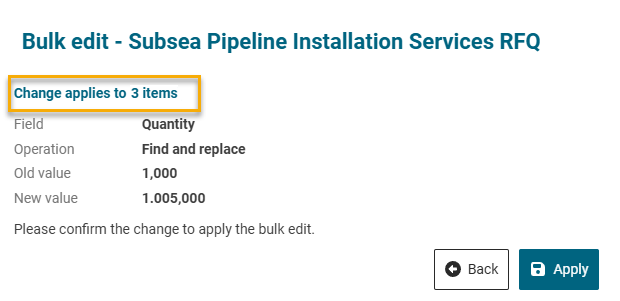
After you click “Next”, the system displays a confirmation dialog with the heading “Bulk Editing (n Items)”. Here, n represents the number of items that will actually be affected by the planned change.
Before confirming, check:
-
the number of affected items
-
the selected scope
-
the field to be changed
-
the editing operation (action)
-
the old value
-
the new value
Only then click “Apply”. If the information is incorrect, cancel the process and correct your selection.
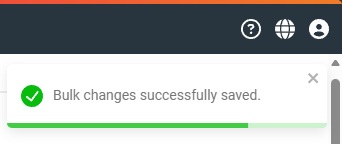
If the changes are applied successfully, the system displays a success message in the upper-right corner of the screen.
Restrictions for items from SAP
Certain values originating from SAP cannot be changed using bulk editing. Such items are skipped automatically.
|
Item Source |
Quantity |
Material Group |
Plant |
Material Number |
|
Purchase Requisition (PR) |
Editable |
Not editable |
Not editable |
Not editable |
|
Material Master Record |
Editable |
Editable |
Editable |
Not editable |
|
Other Source |
Editable |
Editable |
Editable |
Editable |
These restrictions apply to all editing operations, including “Find and Replace”.
Restricted items are neither changed nor included in the displayed number of matches. All other eligible items continue to be processed. This means that bulk editing is not canceled completely if individual items are protected.
Examples
Set a material group for all eligible items
-
Open bulk editing for the entire item list.
-
Select “Material Group”.
-
Select “Add New”.
-
Search for the required material group in the SAP list and select it.
-
Click “Next” and check the number of matches.
-
Confirm by clicking “Apply”.
Existing material groups are overwritten. Items originating from a purchase requisition are skipped automatically.
Add missing plants only
-
Select the required scope.
-
Open bulk editing.
-
Select “Plant”.
-
Select “Add if Empty”.
-
Select the required plant from the SAP list.
-
Check the number of matches and confirm the change.
Items that already have a plant remain unchanged. Items originating from a purchase requisition are also not changed.