
Foreword
This help article is particularly useful for creators of item lists that are used in Futura Smart to conduct GAEB-compatible price requests. This target group includes planners and employees from construction departments, engineering, procurement, as well as internal and external engineering offices and other service providers.
If you would like to learn directly how the GAEB import is performed in Futura Smart, you can read the corresponding procedure in the following section: Importing an Item List via GAEB File
If you would also like to receive important notes on the creation and structure of item lists in interaction with SAP, you can continue reading from this point in the document.
Administrators for FUTURA Smart can grant employees from other departments as well as external engineering offices and other service providers access to Futura Smart. This enables them to upload item lists directly to Futura Smart and therefore creates a very efficient process.
Futura Smart has the following unique feature:
-
Futura Smart enables GAEB-compatible price requests
-
Futura Smart is fully integrated into SAP S/4 HANA and enables the transfer of quotations with structured item lists according to the new 'SAP Lean Services with Item Hierarchies' (with item hierarchies).
This enables a digital end-to-end process from demand request through price requests, quotations, price comparisons, contracts, purchase orders, service entry and invoice, without workarounds using Excel files but via modern interfaces.
However, compatibility with SAP S/4 HANA Lean Services results in minor restrictions when creating GAEB-compatible item lists (IL).
These are explained in this document and must be observed when creating the item list.
For the description of tasks, functions or roles, the masculine form is used in this document for reasons of simplicity. The chosen wording addresses all genders to whom tasks, functions or roles are assigned, without any evaluation of their gender, physical or psychological abilities, or any other judgement.
Note on use with SAP:
In FUTURA Smart, item lists can be created using two different item numbering methods.
By default, FUTURA Smart uses an item numbering structure based on the SAP Lean Services numbering scheme. This applies when you create an item list manually or by importing an Excel file.
Alternatively, an item list can be created by importing a GAEB file. In this case, the ordinal numbers (OZ) are adopted unchanged from the imported GAEB file.
Regardless of which numbering method you use, both variants fully support further processing with SAP Lean Services (Item Hierarchies). When purchase orders or contracts are transferred to SAP, the item data is processed accordingly and converted into the numbering structure expected by SAP.
Using the GAEB numbering scheme also provides the additional benefit that your suppliers can export the item list as a GAEB X83 file, process it in their own estimating GAEB software, and then import the priced quotation data back into FUTURA Smart as a GAEB X84 file.
For more information about this topic, including how to work with GAEB files, see the following help article: Working with GAEB items and regular item lists
Remaining Restrictions Due to SAP
GAEB and 'Item Hierarchies' in SAP
The interaction of GAEB and Item Hierarchies in SAP
When using an SAP S/4HANA integration, 'Lean Services' can be used. This function is used to represent structured item lists for services. SAP recommends this structure for price requests and quotation comparisons.
FUTURA Smart enables the use of item lists - that is, structured lists of items - so that GAEB compatibility can be established together with SAP and the exchange of item lists from the construction industry can be used.
The structured item list is also considered for purchase orders and contracts in SAP. This allows you to create your structured item list with the hierarchy numbers automatically generated by SAP and all other information, including the quotation prices of your suppliers.
The following key restrictions must be observed:
-
In SAP S/4HANA, an item may appear at any position within a hierarchy level. To remain GAEB-compliant, however, items must be placed at the end of a hierarchy level.
-
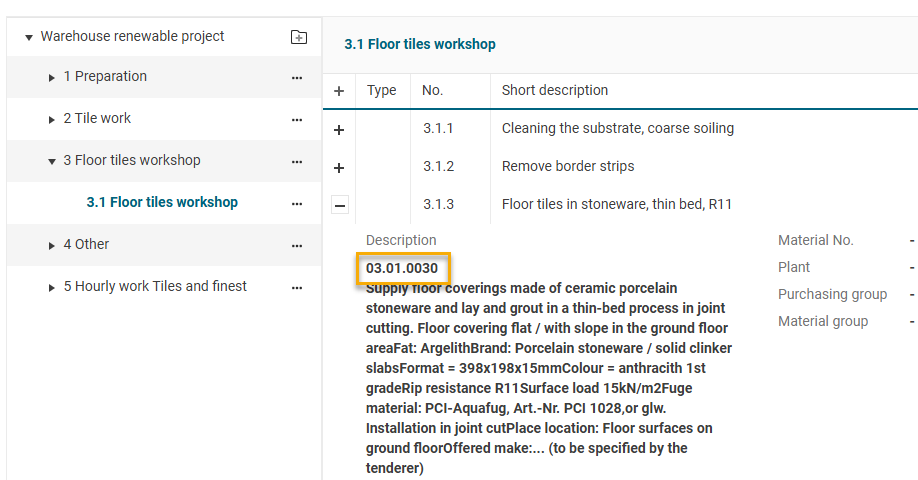
SAP S/4HANA does not support sequence numbers from the GAEB standard, which are required for exchange with suppliers. However, since an item list from GAEB must contain sequence numbers, these are recognized and processed when importing into the price request. In the subsequent process in SAP S/4HANA they are currently not processed. For this purpose, FUTURA Smart creates an SAP-identical numbering and the sequence numbers are written into the long text of the item:
-
While various item types are used according to GAEB, the Item Hierarchies in SAP S/4HANA only support the item type 'Standard item'. When creating item lists, item types can and should be used. However, when creating an SAP contract or SAP purchase order, the purchaser must convert the relevant items into standard items in SAP. These item types are:
-
Standard item
-
Conditional item
-
Alternative item
-
Base item
-
This means that item types not supported in SAP S/4HANA are managed in FUTURA Smart. For example, if a conditional item is selected by the purchaser, FUTURA Smart converts this item into a standard item so that it can be transferred to SAP S/4HANA. In this way, construction price requests can be managed in SAP S/4HANA despite SAP-related restrictions.
-
According to GAEB there are five hierarchy levels and one item level, in total six levels. In SAP S/4HANA Lean Services with Item Hierarchies there are four hierarchy levels and one item level, in total five levels, therefore one level fewer. For this reason, only four hierarchy levels and one item level may be used when creating the item list. In the rare case that this number of levels is not sufficient, the item list must be divided into several price requests (one price request per lot).
Character Limitations
With regard to the number of characters, the following restrictions must be observed:
-
The short text of an item must be limited by the creator to 40 characters, as SAP truncates the short text after 40 characters. The text may only be written in a single line. Spaces must be taken into account.
-
There is no explicit limitation for the long text of an item; however, if possible the text should be limited to ≤ 32,000 characters.
When transferring to SAP, the short text of the item is truncated due to the SAP limitation of 40 characters. For this reason, short texts should already be chosen during planning so that they do not exceed 40 characters and additional details are included in the long text.
Structure of the GAEB file and import into FUTURA Smart
Item Types
Explanation of the item types and their definitions in detail
In an item list, various item types can be used to provide a clear and structured layout.
Each item type serves a specific purpose and determines how the respective item is handled, displayed, and calculated within the list.
The available item types are explained below:
Standard Item – The default selection for an item. It is included in the item list with its quantity and price as part of the normal calculation.
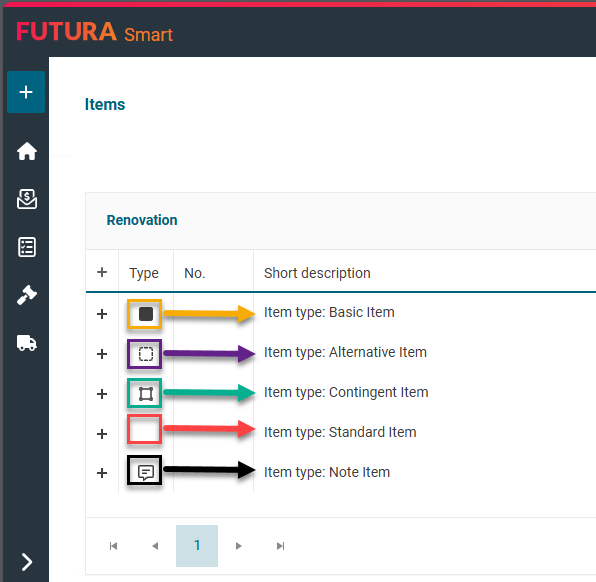
Basic Item – A main item that serves as a reference or basis. One or more alternative items can be linked to it. In the list, it is marked with a specific symbol.
Alternative Item – An item created as an alternative to a base item. It is always linked to its corresponding base item and automatically assigned a price of 0.00. It is also marked with a symbol in the list.
Contingent Item – A potential but not firmly calculated item. It is also listed with a value of 0.00 and is not included in the total calculation.
Note Item – An item used solely for informational or explanatory purposes. It contains no quantity or price and is therefore not included in the total calculation. Note items can be used, for example, to provide additional technical information, execution conditions, or other explanatory texts within the item list.
If an item is not a standard item, you can change the item type accordingly.
When importing GAEB files, these item types are automatically recognized and correctly assigned.
This allows you to subsequently convert existing items, such as those imported from a GAEB file into another item type if necessary.
To do this, open the item details using the edit (pencil) button on the right-hand side of the item list.
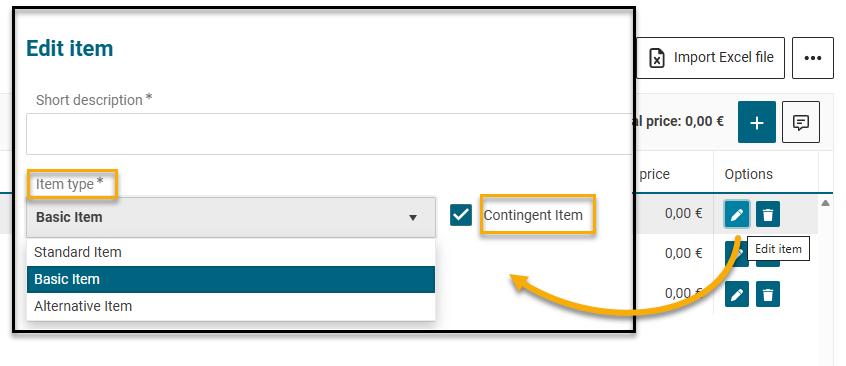
The differentiated item types are displayed with symbols in the overview of the item list:
Importing an Item List via GAEB File
Item lists in GAEB XML format from version 3.2 (X81, X82, X83, X86) can be imported to create the item list.
During import, existing lots are adopted as title items. All other items are adopted according to the item type defined in the GAEB file. The system supports the item types standard item, base item, alternative item and optional item and automatically assigns them correctly during import.
The GAEB file may contain up to four hierarchy levels, which are fully visible in the Positions tab after import. If an item list already exists, you can overwrite it by importing again if necessary.
Notes:
-
Only one file can be imported per transaction.
-
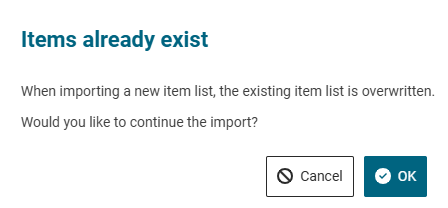
A new import - whether via Excel or GAEB - replaces an existing item list. This applies to items previously created manually as well as those created through a previous file import. A corresponding warning message is displayed in such cases.
-
Only GAEB files from version 3.2 are supported
Procedure
In the Positions tab, select the Import GAEB file button.

Then select the desired GAEB file from your Windows environment and confirm the import.
After the import has been completed successfully, the positions will be displayed. On the left side, click on the lowest hierarchy level (title folder) to display the services contained within it on the right side.
List of Units of Measure (UoM) from SAP
For the correct processing of quotations resulting from price requests, it is necessary to use only units of measure that are defined in the SAP system. Only these units of measure are recognized by SAP and can be processed without errors.
If units of measure are transferred to SAP via the interface that do not exist in the system or are not clearly defined, an error will occur during data transfer. In this case, the affected positions will not be created in SAP and the subsequent process, for example the creation of a purchase order or a contract, cannot be continued.
This particularly affects the import of GAEB files, which are often created by external companies or engineering offices. In these cases, it must also be ensured that only units of measure known in the SAP system are used. Otherwise, a successful import into FUTURA Smart and the subsequent processing in SAP will not be possible.
The following list contains the units of measure that are available by default in the SAP system. The actually available units of measure may vary depending on the SAP system or customer system. The following table therefore serves only as a reference.
|
Unit Key |
Unit Symbol |
Description (English) |
|---|---|---|
|
% |
% |
Percent |
|
%O |
%0 |
Per mille |
|
ONE |
Eins |
One |
|
T |
Tage |
Days |
|
22S |
mm2/s |
Square millimeter per second |
|
CMS |
cm/s |
Centimeter per second |
|
MMI |
m/min |
Meter per minute |
|
µL |
µl |
Microliter |
|
µF |
µF |
Microfarad |
|
PF |
pF |
Picofarad |
|
A |
A |
Ampere |
|
GOH |
GOhm |
Gigaohm |
|
GM3 |
g/m3 |
Gram per cubic meter |
|
ACR |
Acre |
Acre |
|
KD3 |
kg/dm3 |
Kilogramm/Kubikdezimeter |
|
KML |
kmol |
Kilomol |
|
KN |
kN |
Kilonewton |
|
MN |
MN |
Meganewton |
|
MGO |
MOhm |
Megaohm |
|
MAV |
MV |
Megavolt |
|
µA |
µA |
Microampere |
|
TTE |
Tüte |
Tüte |
|
BAR |
bar |
Bar |
|
BBL |
Barrel |
Barrel |
|
FL |
Flasche |
Bottle |
|
BQ |
Bq |
Becquerel (1/second) |
|
BTU |
BTU |
British Thermal Unit |
|
MF |
mF |
Millifarad |
|
NA |
nA |
Nanoampere |
|
NF |
nF |
Nanofarad |
|
CD |
Cd |
Candela |
|
CM |
cm |
Centimeter |
|
CM2 |
cm2 |
Square centimeter |
|
COP |
Kopien |
Copies |
|
CL |
Zentiliter |
Centiliter |
|
DEG |
Grad |
Degree |
|
DM |
dm |
Decimeter |
|
DZ |
Dutzend |
Dozen |
|
EA |
Each |
Each |
|
F |
F |
Farad |
|
°F |
°F |
Fahrenheit |
|
FT |
Fuß |
Foot |
|
FT2 |
Quadr.Fuß |
Square foot |
|
FT3 |
Kubikfuß |
Cubic foot |
|
G |
g |
Gram |
|
°C |
°C |
Degree Celsius |
|
GAL |
US-Gallone |
US gallon |
|
H |
Stunden |
Hours |
|
HA |
Hektar |
Hectare |
|
HL |
hl |
Hectoliter |
|
HZ |
Hz |
Hertz (1/second) |
|
J |
J |
Joule |
|
JHR |
Jahr |
Years |
|
K |
K |
Kelvin |
|
KA |
kA |
Kiloampere |
|
KG |
kg |
Kilogram |
|
KHZ |
kHz |
Kilohertz |
|
KJ |
kJ |
Kilojoule |
|
KM |
km |
Kilometer |
|
KM2 |
km2 |
Square kilometer |
|
KMH |
km/h |
Kilometer per hour |
|
KPA |
kPa |
Kilopascal |
|
KV |
kV |
Kilovolt |
|
KW |
kW |
Kilowatt |
|
KWH |
kWh |
Kilowatt hour |
|
L |
l |
Liter |
|
LB |
Pfund |
Pound |
|
LPH |
Liter/Std |
Liter per hour |
|
M |
m |
Meter |
|
M/S |
m/s |
Meter per second |
|
M2 |
m2 |
Square meter |
|
M3 |
m3 |
Cubic meter |
|
MA |
mA |
Milliampere |
|
MBA |
mbar |
Millibar |
|
MG |
mg |
Milligram |
|
MHZ |
MHz |
Megahertz |
|
MI |
Meile |
Mile |
|
MIN |
Minuten |
Minutes |
|
ML |
ml |
Milliliter |
|
MM |
mm |
Millimeter |
|
MM2 |
mm2 |
Square millimeter |
|
MM3 |
mm3 |
Cubic millimeter |
|
MOL |
mol |
Mole |
|
MON |
Monate |
Months |
|
MPA |
MPa |
Megapascal |
|
MS |
ms |
Millisecond |
|
MV |
mV |
Millivolt |
|
MW |
mW |
Milliwatt |
|
MWH |
MWh |
Megawatt hour |
|
N |
N |
Newton |
|
NM |
N/m |
Newton per meter |
|
NS |
ns |
Nanosecond |
|
OHM |
Ohm |
Ohm |
|
OZ |
Unze |
Ounce |
|
PA |
Pa |
Pascal |
|
PAA |
Paar |
Pair |
|
PAK |
Pack |
Pack |
|
PAL |
Palette |
Pallet |
|
PRS |
Personen |
Persons |
|
PSI |
PSI |
Pound per square inch |
|
QT |
Quart US l |
US quart |
|
ROL |
Rolle |
Roll |
|
S |
Sekunden |
Seconds |
|
ST |
Stück |
Piece |
|
SVH |
Sv/h |
Sievert per hour |
|
TAG |
Tage |
Days |
|
TBQ |
TBq |
Terabecquerel |
|
TES |
T |
Tesla |
|
TEU |
TEU |
Twenty-foot equivalent unit |
|
TO |
t |
Tonne |
|
TON |
US-Tonne |
US ton |
|
UG |
µg |
Microgram |
|
V |
V |
Volt |
|
W |
W |
Watt |
|
WCH |
Wochen |
Weeks |
|
YD |
Yard |
Yard |
|
YD2 |
Quadr.Yard |
Square yard |
|
YD3 |
Kubik Yard |
Cubic yard |