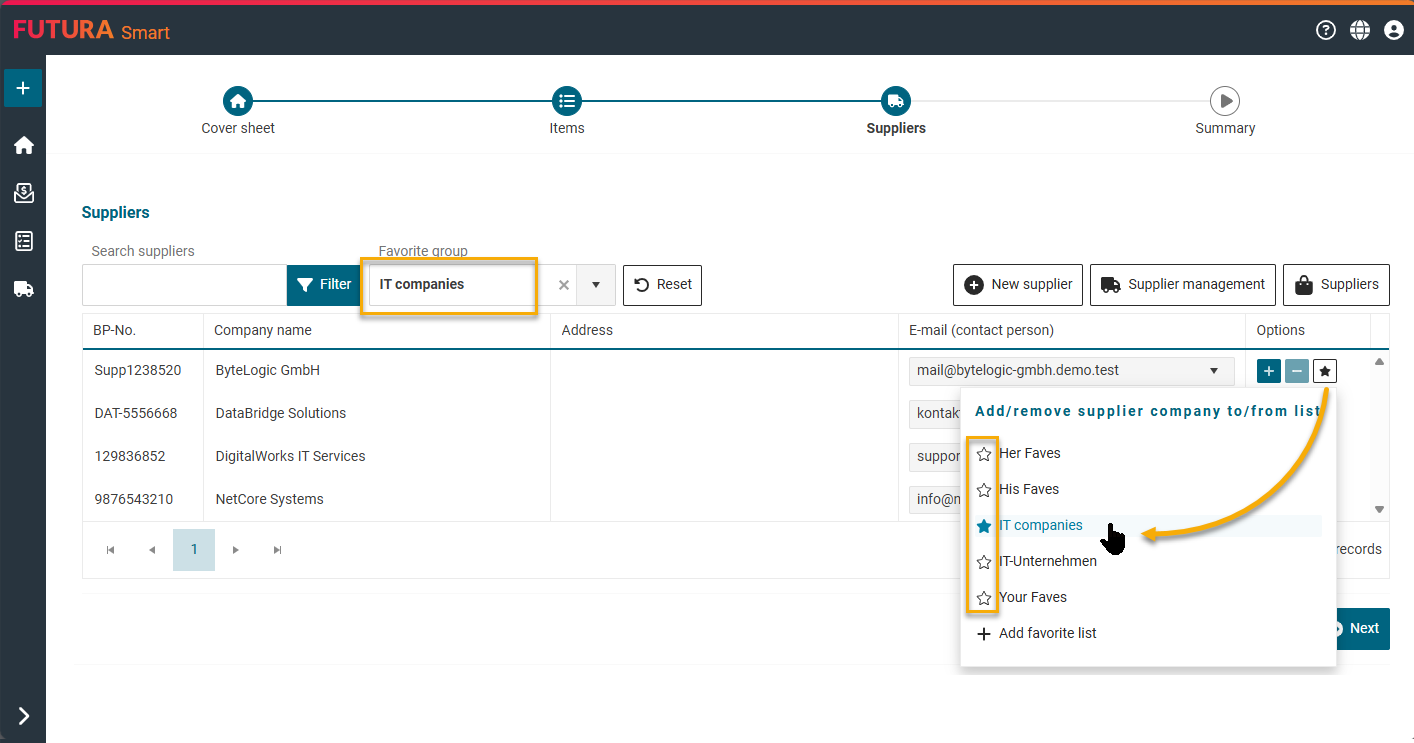
Favorite groups allow you to organize suppliers in personal groups. These groups can later be used in all transaction types to specifically filter suppliers and add them quickly. Each user in FUTURA Smart can create and manage multiple personal favorite groups.
Creating favorite groups
First, open your account management at the top right and select “My Account”. There you will find the “Favorite groups” tab. In this area, you create and manage all personal favorite groups.
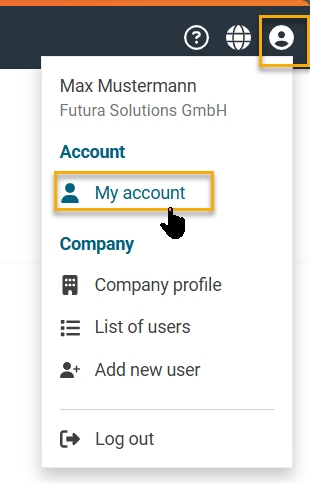
Next, click the Create favorite group button at the top right.
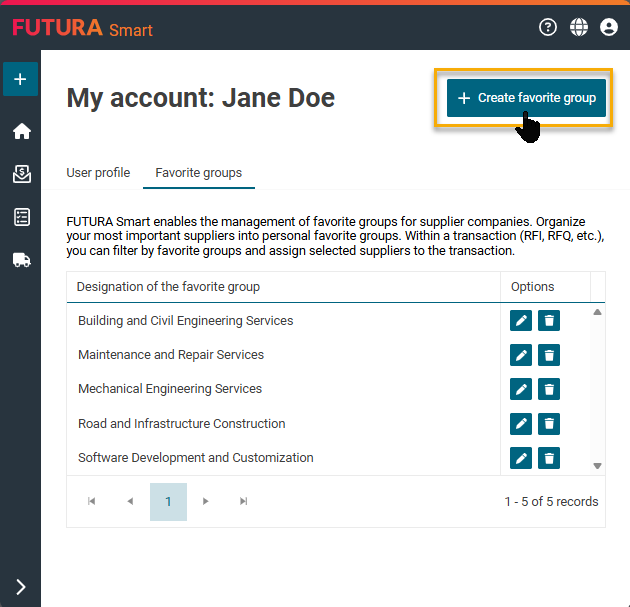
After clicking, a dialog window opens. Enter the desired name for the favorite group here. The name can be changed at any time later.
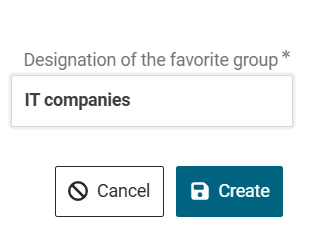
If you select Cancel, the window closes and you return to the Favorites tab. If you select Create, the window closes and the editing area of the newly created favorite group is displayed.
Editing favorite groups and assigning suppliers
In the editing area, you can adjust the name of the favorite group as needed. Below that, you will find the address book with all available supplier companies.
Using the search function, you can search for suppliers specifically or filter the list by existing favorite groups. To add a supplier to the current favorite group, click the Add button in the lower list.
All suppliers assigned to the opened favorite group are displayed in the upper area. They are sorted alphabetically by supplier name.
If you want to remove a supplier, click the Remove button (minus button) next to the corresponding entry in the upper list.
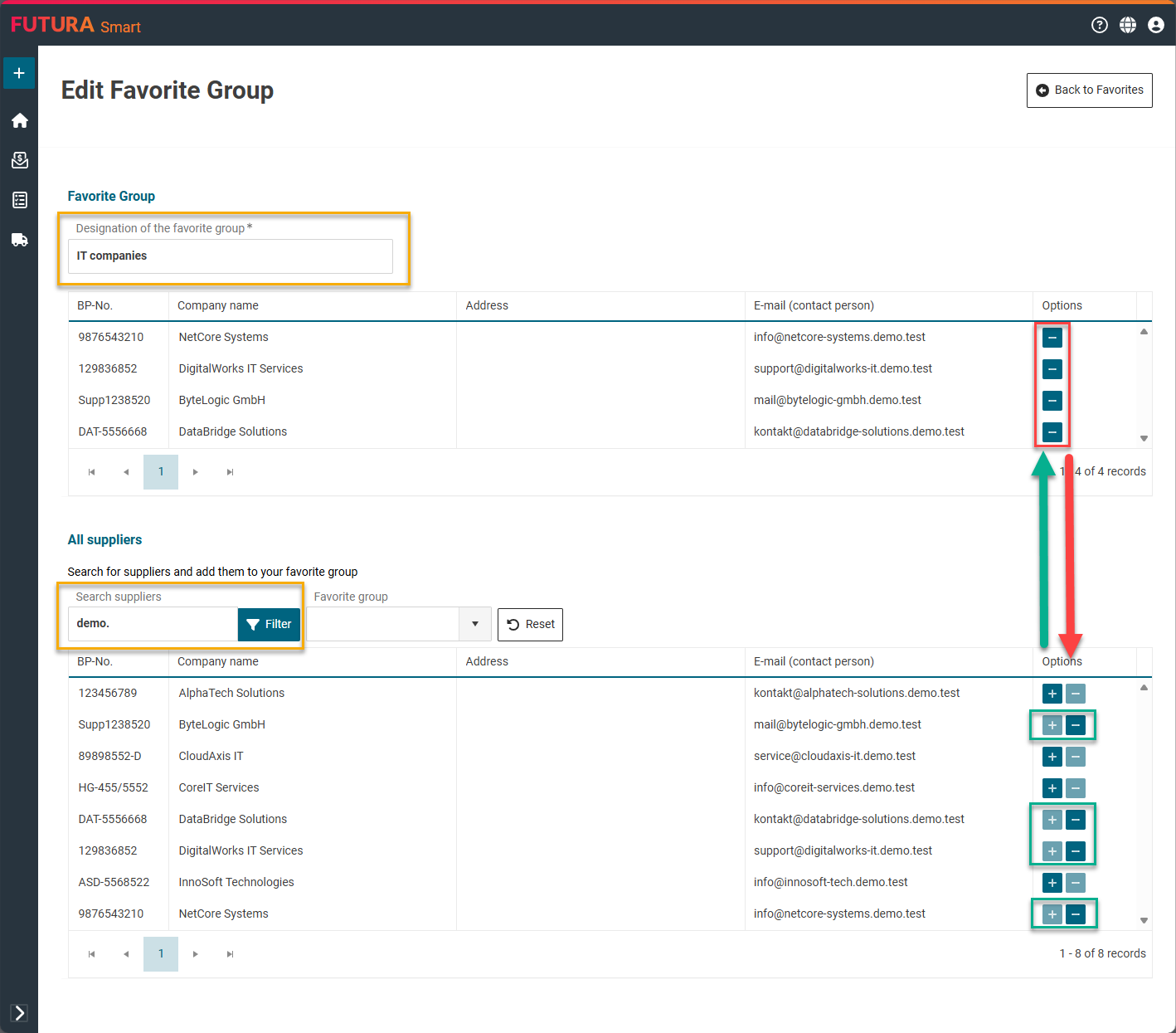
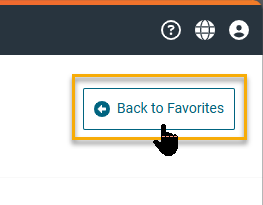
All changes are saved automatically as soon as you leave a field. Additional saving is not required. Clicking Back to favorites returns you to the overview.
Modifying an existing favorite group
To edit an existing favorite group, open the Favorite groups tab in the user account and click the pencil icon of the desired list.
The editing area opens in the content section. Here you can change the name and add or remove suppliers. The Edit button is always visible and active.
Deleting a favorite group
If you want to delete a favorite group, open the Favorite groups tab and click the trash icon of the corresponding list.
A confirmation message appears with the title “Delete favorite group”.
If you confirm with Delete, the favorite group is deleted. All assigned suppliers are removed and the list is no longer displayed. If you select Cancel, the deletion process is canceled and you return to the dialog.
Using favorite groups in transactions
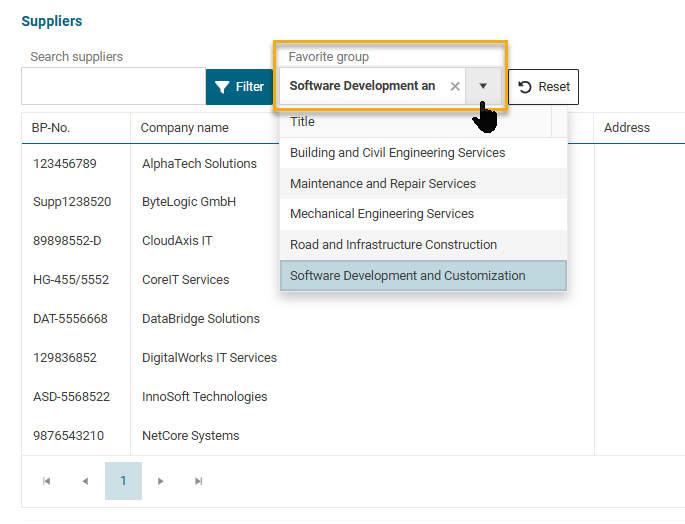
In all transactions, a combo box is available for filtering by favorite group. Click the combo box and select one of your favorite groups. After selection, the supplier list is automatically updated and shows the suppliers contained in this favorite group.
Adding or removing suppliers directly to or from favorite groups
In every supplier list, a star icon is displayed next to each supplier. When you click this icon, a list of all favorite groups in your user account opens, sorted alphabetically. Here you define which favorite groups the supplier should belong to.
-
If the star is filled, the supplier is already assigned to the respective favorite group. Clicking removes it from the list.
-
If the star is empty, the supplier is not yet assigned. Clicking adds it to the favorite group.
A supplier can be assigned to multiple favorite groups, but only once within the same favorite group.