
In Futura Smart, you can use a feature for RFQs created through via the Purchase Requisition Cockpit that allows you to automatically prefill the cover sheet of the RFQ based on defined rules. This way, recurring texts, contact persons, and settings are applied automatically. If a setting is defined in a rule, it will be automatically used for every new RFQ that matches this setup.
The predefined values described below can still be adjusted individually in each RFQ if needed, even when a rule is in place.
Auto-Fill rules only apply in RFQs that are created via the Purchase Requisition Cockpit.
Configuration of these auto-fill rules is performed centrally in the company profile.
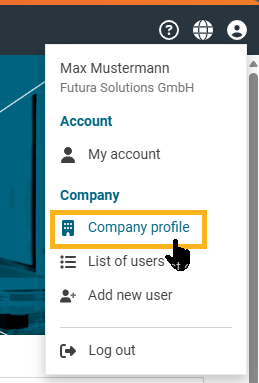
To do this, open the company profile via the Account Management menu at the top right…
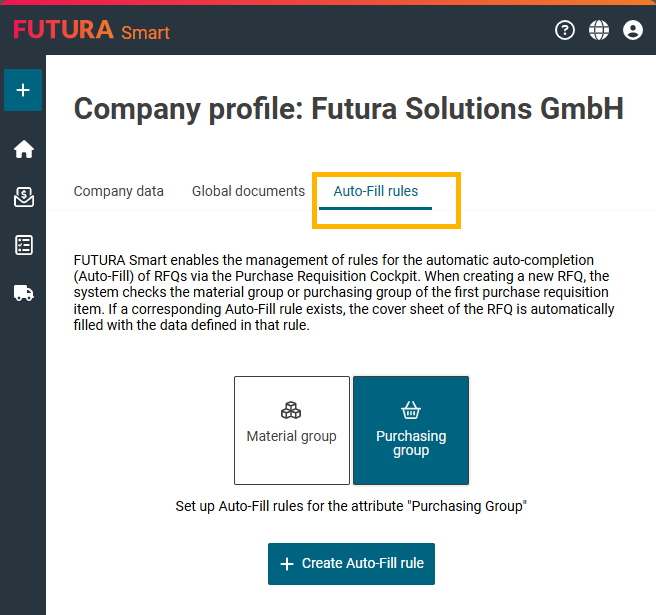
… and then switch to the Auto-Fill Rules tab. If no rule exists yet, you can begin creating your first auto-fill rule here. First, you define the basis on which the rules should operate. You can choose between Purchasing Group and Material Group. This selection is mutually exclusive. You therefore initially decide whether you want to base your rules on Purchaser Groups or Material Groups.
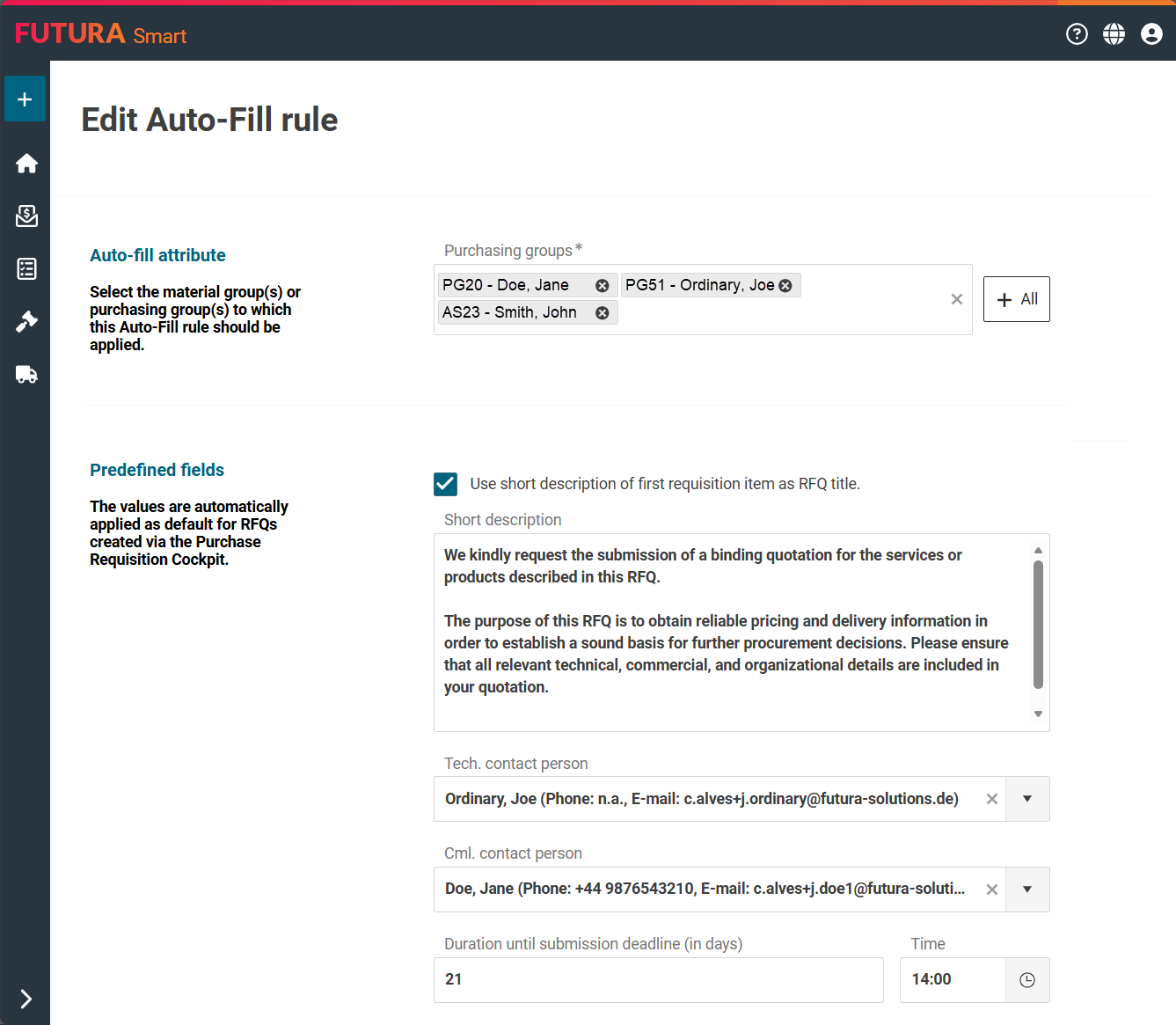
If you select the variant for Purchasing Group, a new dialog opens that resembles the cover sheet of an RFQ. In this dialog, you can define the desired rule and assign the corresponding attributes.
In the upper section of the dialog, first select the purchaser group(s) for which the rule should apply. This auto-fill rule will later be applied to this/these purchaser group(s) when an RFQ is created via the Purchase Requisition Cockpit.
If needed, check the box to automatically use the short description of the first Purchase requisition item as the RFQ title. If you activate this checkbox, the system will use the short description of the first purchase requisition item that was added to the shopping basket when creating the RFQ and automatically insert it into the RFQ title field. This predefinition is applied by default but can be manually edited at any time. It applies to all fields.
In addition, you can predefine a short description in the rule, predefine the technical and commercial contact persons, and define a lead time in days until the submission deadline. The number of days entered here will later be used by the system to automatically set the submission deadline of a new RFQ into the future.
You can also specify a submission time so that this part of the deadline is automatically filled in for each RFQ.
Further down in the dialog, you will find sections for delivery conditions and payment terms. At the bottom of the dialog, you can also configure additional options. For example, the Easy Access feature for suppliers can already be predefined in the rule. If you activate this option, the corresponding checkbox will be automatically set when creating an RFQ.
You can also specify that the quotation must include a complete pricing by selecting the option Quotation must be fully priced, as well as an additional option requiring suppliers to provide CO₂ emission values.
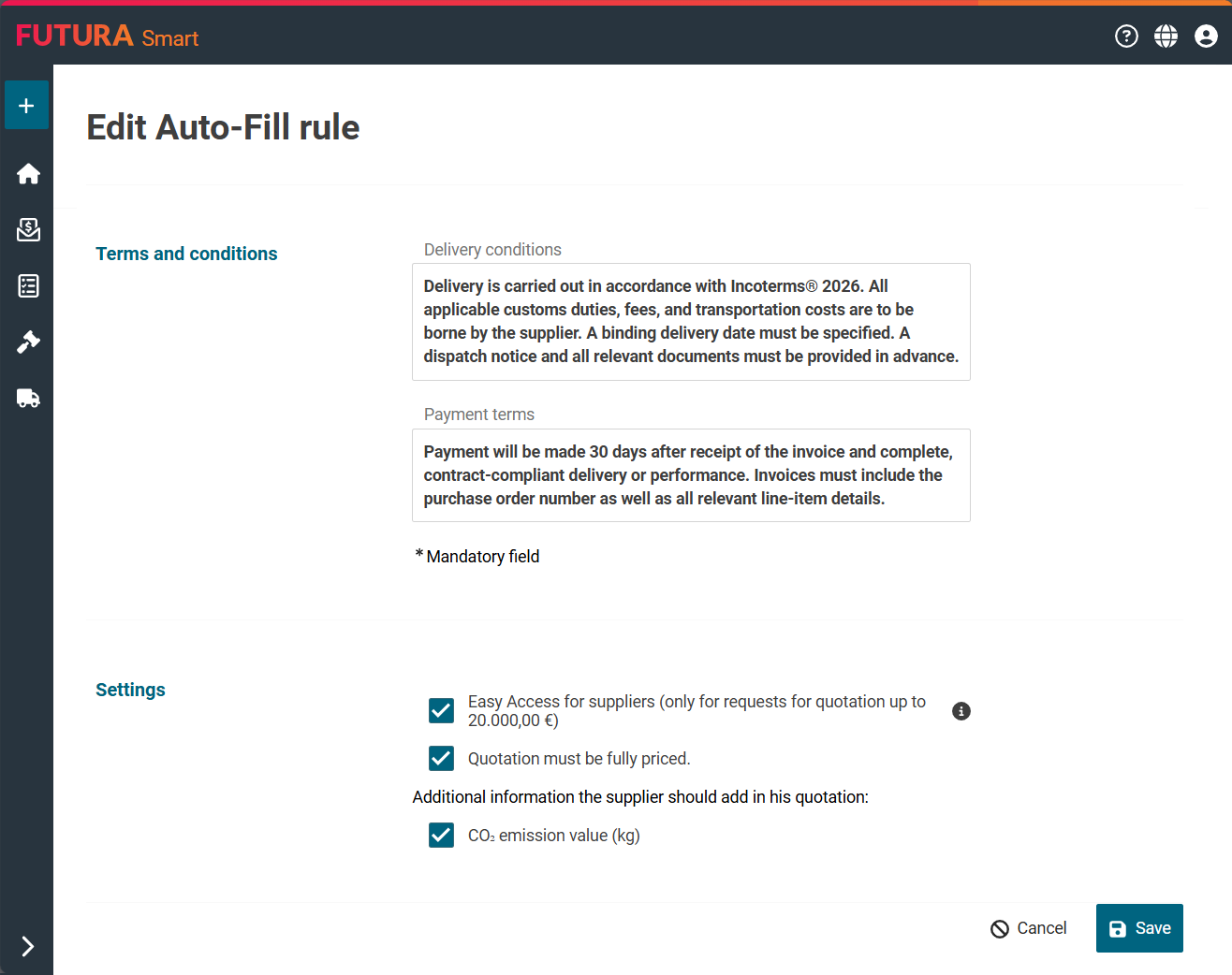
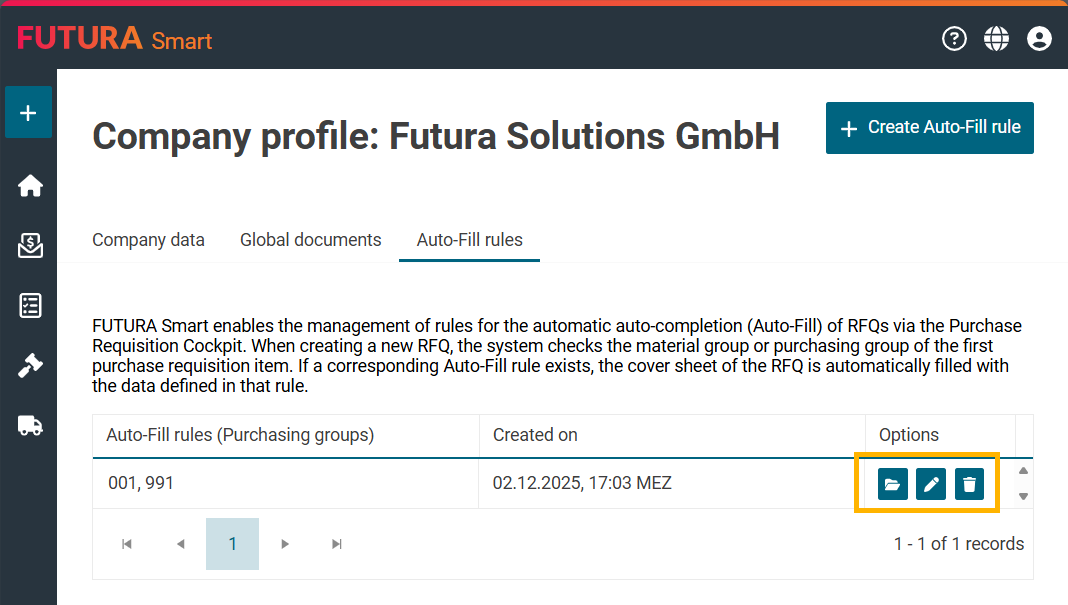
Once you have maintained all desired fields and options according to your requirements, save the rule using the Save button at the bottom right. After saving, you will be redirected back to the overview of the Auto-Fill Rules tab. There, you will see the rule you just created listed.
Several actions are now available for each rule:
-
Use the trash can icon to delete a rule,
-
use the folder icon to view the details, and
-
use the pencil icon to reopen and edit the rule if you wish to make adjustments later.
It is possible to create multiple Auto-Fill rules, for example for different purchaser groups or material groups. Depending on which combination is selected when creating an RFQ in the Purchase Requisition Cockpit, the system retrieves the appropriate data from the stored rules and automatically pre-fills the cover page with the defined values. In this way, you enable your users to create RFQs in a consistent, efficient manner with minimal manual effort, while still retaining the flexibility to override fields individually whenever needed.